> ## Documentation Index
> Fetch the complete documentation index at: https://docs.dangoweb.com/llms.txt
> Use this file to discover all available pages before exploring further.
# Domains
> Learn how to link and manage domains on DirectAdmin.
## Link Domain
If you registered your domain with us, this has already been done for you.
To serve web content to your domain it is required to link it using Nameservers or CNAME/A records.
### Log In to Registrar
Access your domain registrar account by logging in to the panel that you used to purchase your domain.
### Nameservers
Within the registrar panel, select the desired domain and navigate to the tab that mentions changing nameservers.
For specific instructions for popular registrars, see instead below:
* [GoDaddy](https://www.godaddy.com/help/edit-my-domain-nameservers-664)
* [Namecheap](https://www.namecheap.com/support/knowledgebase/article.aspx/767/10/how-to-change-dns-for-a-domain/)
* [IONOS](https://www.ionos.com/help/domains/using-your-own-name-servers/using-your-own-name-servers-for-a-domain/)
* [Porkbun](https://kb.porkbun.com/article/22-how-to-change-nameservers)
#### Set Nameservers
Find the nameservers that you would like to use to link your domain, this may be the customer nameservers sent in your welcome email or enterprise nameservers supplied to you.
#### Save Nameservers
Save your nameservers. Changes may take up to 48 hours to fully propagate around the world. Usually, propagation completes within a few hours. You can try clearing your DNS cache or using an incognito/private tab to speed up this process. If you are alerted with an error when saving the nameservers, try using our backup nameservers. If that fails, use another method or contact support.
### CNAME/A Records
Within the registrar panel, select the desired domain and navigate to the tab that mentions changing records.
#### Set CNAME/A Records
Create a new CNAME or A record with the name `@`. If you choose to use CNAME to point (recommended in case we change IPs), set the value to `cname.dangoweb.com`. If you choose to use our IP, set the value to our server IP. This can be found by contacting support or pinging any of our websites. `@` only applies to the main domain, not subdomains. You will need to add a record for each subdomain, with the name as the subdomain. You may wish to use a wildcard, `*`, to point all subdomains in one record.
#### Save CNAME/A Records
Save your added records. If you are alerted with an error when saving the records, contact support. It may be possible that they were entered incorrectly.
## Log In to DirectAdmin
To add your domain, [log in](/help/web-hosting/directadmin/logging-in) to the [ DirectAdmin](/web-hosting/directadmin) control panel and navigate to the **Domain Setup** tab.
## Add Domain
Once there, you should see your main domain in the list of domains. If the domain you would like to add is on the list, it is already linked. If it is not, click the "Add New" button to add it. Enter your new domain name and click "Create". Leave the other fields how they are.
 ## Modify Domain
Once you have your domain added to [ DirectAdmin](/web-hosting/directadmin), you can modify it if needed. You can rename it if needed, however this is not advised as it may break your website and configurations you have. You may also want to toggle on "Force SSL with https redirect" if you have an [SSL](/help/web-hosting/directadmin/ssl) certificate.
## Modify Domain
Once you have your domain added to [ DirectAdmin](/web-hosting/directadmin), you can modify it if needed. You can rename it if needed, however this is not advised as it may break your website and configurations you have. You may also want to toggle on "Force SSL with https redirect" if you have an [SSL](/help/web-hosting/directadmin/ssl) certificate.
 ## Delete Domain
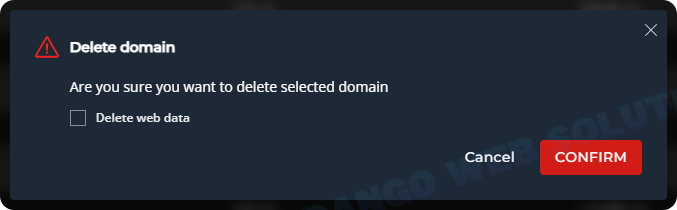
If you would like to remove your domain from **DirectAdmin**, select it from the domain list and click delete. It will ask if you would like to delete the domain's web files with it. Deleting a domain is a permanent action, it deletes all DNS configuration and files (if you chose). You may add the domain again, but this will not restore deleted configurations or web files.
## Delete Domain
If you would like to remove your domain from **DirectAdmin**, select it from the domain list and click delete. It will ask if you would like to delete the domain's web files with it. Deleting a domain is a permanent action, it deletes all DNS configuration and files (if you chose). You may add the domain again, but this will not restore deleted configurations or web files.
 ## Subdomains
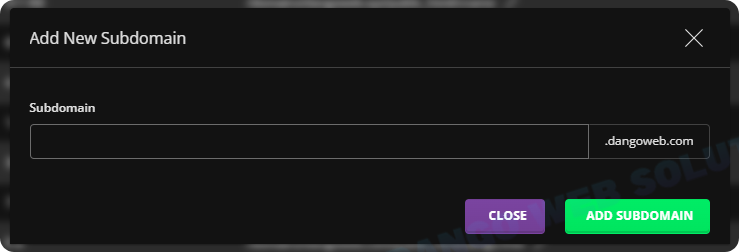
Need to add a subdomain to your domain? Simply go to the "Subdomains" tab and add the subdomain to the domain you have linked. You can then use the subdomain by navigating to it in the **File Manager** or [FTP](/help/web-hosting/directadmin/ftp) tab. After subdomain creation you may change the Docroot if needed.
## Subdomains
Need to add a subdomain to your domain? Simply go to the "Subdomains" tab and add the subdomain to the domain you have linked. You can then use the subdomain by navigating to it in the **File Manager** or [FTP](/help/web-hosting/directadmin/ftp) tab. After subdomain creation you may change the Docroot if needed.
 ## DNS
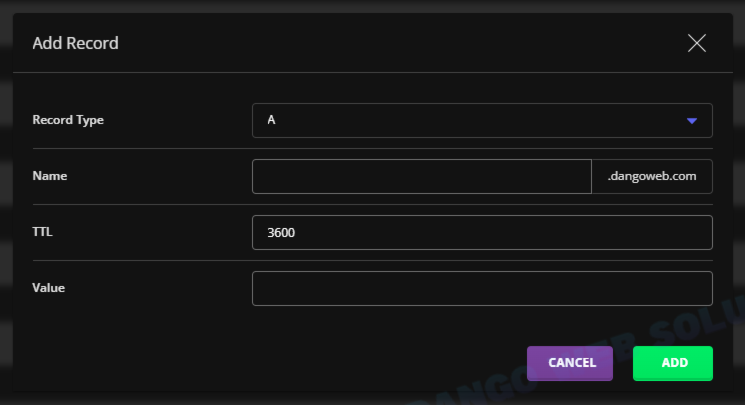
[ DirectAdmin](/web-hosting/directadmin) offers a DNS record manager similar to all other control panels and domain registrars. You may use it to configure the domain to add or remove DNS records. This only applies if you linked your domain using nameservers.
## DNS
[ DirectAdmin](/web-hosting/directadmin) offers a DNS record manager similar to all other control panels and domain registrars. You may use it to configure the domain to add or remove DNS records. This only applies if you linked your domain using nameservers.