> ## Documentation Index
> Fetch the complete documentation index at: https://docs.dangoweb.com/llms.txt
> Use this file to discover all available pages before exploring further.
# MySQL
> Learn how to set up and use your MySQL database.
phpMyAdmin is built in to [ DirectAdmin](/web-hosting/directadmin) as an web alternative to MySQL.
## Log In to DirectAdmin
[Log in](/help/web-hosting/directadmin/logging-in) to the [ DirectAdmin](/web-hosting/directadmin) control panel and navigate to the **Databases** tab.
## Create Database
On the bottom of the page, fill out a database name and click "Create". If you would like to set your own default username and password for the database, click "Advanced mode" and fill that out before creating. Once your database is created, a popup will appear listing your connection details. You can use any SQL management application to browse or edit your database.
 ## Connect to Database
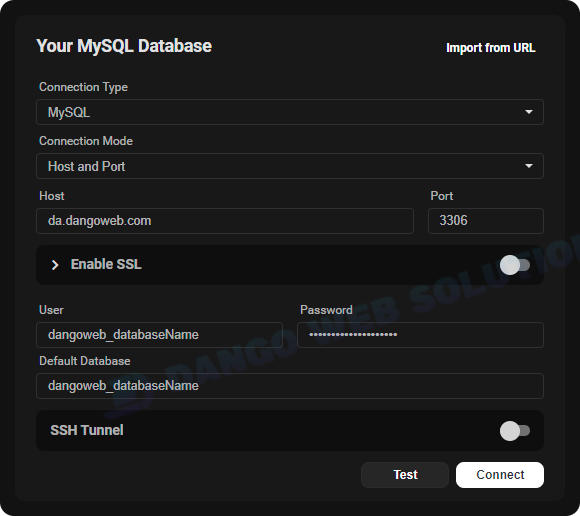
Locate your favorite SQL Database manager program, whether online or downloaded - either can be used. You can connect using the below:
Type: MySQL\
Host: `da.dangoweb.com`\
Port: `3306`\
Username: Database Account Username\
Password: Database Account Password
## Connect to Database
Locate your favorite SQL Database manager program, whether online or downloaded - either can be used. You can connect using the below:
Type: MySQL\
Host: `da.dangoweb.com`\
Port: `3306`\
Username: Database Account Username\
Password: Database Account Password
 ### phpMyAdmin
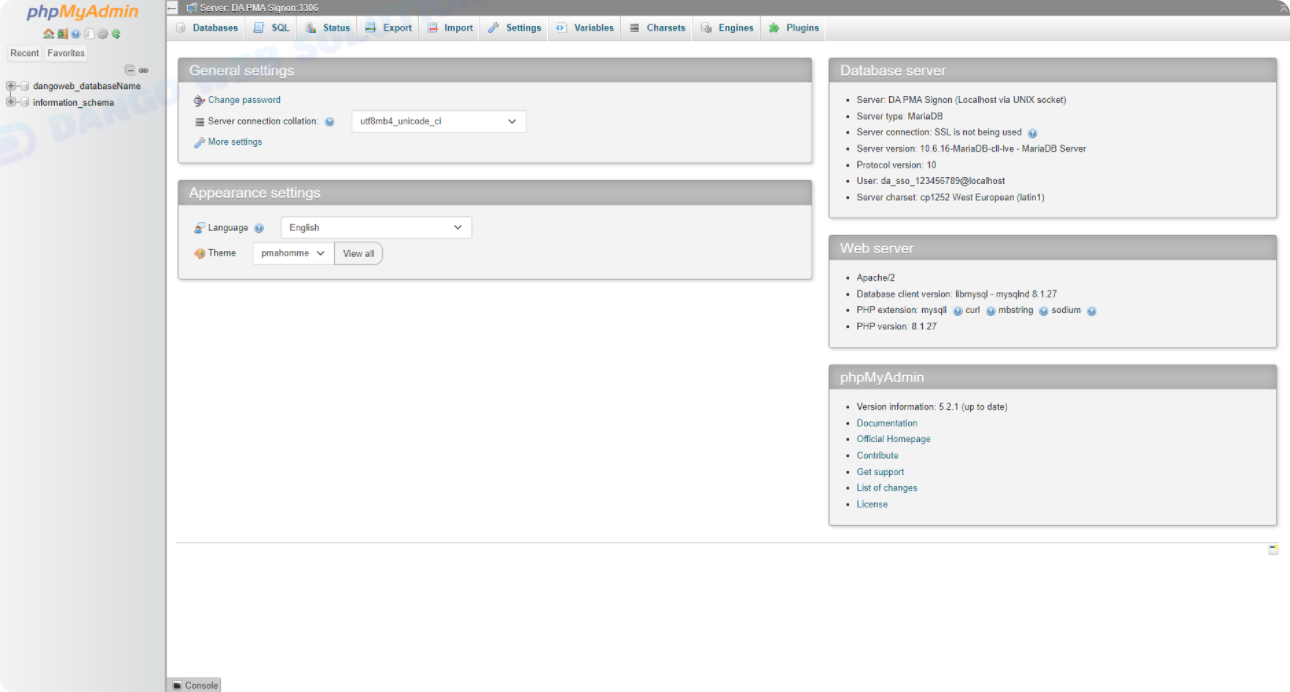
If you do not have a downloaded SQL client, you may use the built-in phpMyAdmin panel to manage and edit your database.
Once you are in **DirectAdmin**, locate and open the **phpMyAdmin** tab under **Extra Features**. You can see all your databases on the left side, and you can select one to view it's tables and begin constructing your database.
### phpMyAdmin
If you do not have a downloaded SQL client, you may use the built-in phpMyAdmin panel to manage and edit your database.
Once you are in **DirectAdmin**, locate and open the **phpMyAdmin** tab under **Extra Features**. You can see all your databases on the left side, and you can select one to view it's tables and begin constructing your database.
 ## Modify Database
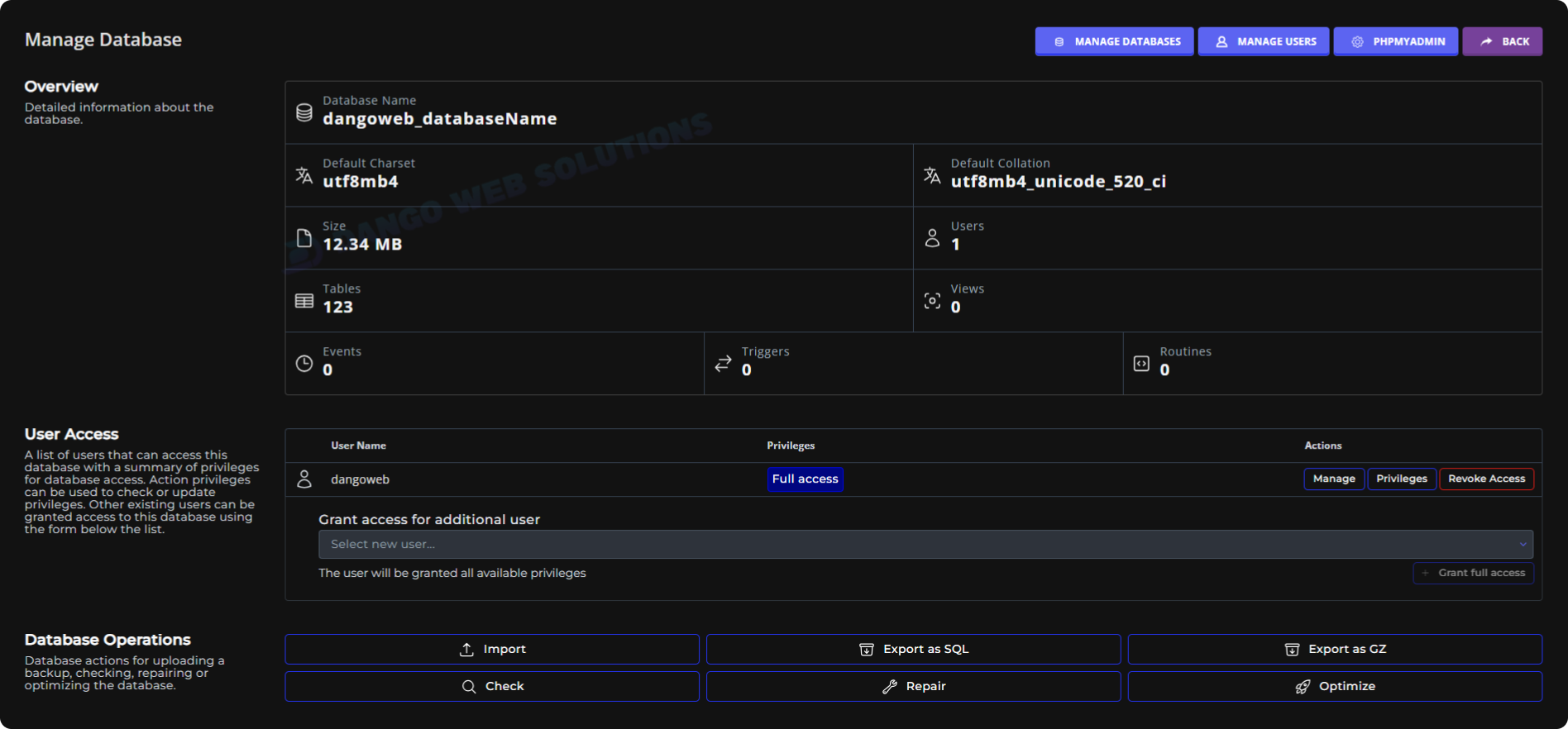
Although you cannot change your database name once created, you can add users, import, export, repair, and optimize your database from **DirectAdmin**. To do so, go to the **Databases** tab and click on the database you would like to modify. At the bottom of the page you should see all modification options.
## Modify Database
Although you cannot change your database name once created, you can add users, import, export, repair, and optimize your database from **DirectAdmin**. To do so, go to the **Databases** tab and click on the database you would like to modify. At the bottom of the page you should see all modification options.
 ### Manage Users
On the same page you should see a section named "User Access". Through there you can add users, delete users, and change user privileges. These are different user accounts that can be used to log into the database and make edits. You should see your default account already there.
## Delete Database
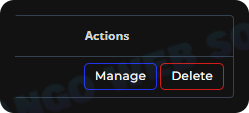
If you ever need to delete a database, go to the **Databases** tab and click the "Delete" button next to the database you would like to delete.
### Manage Users
On the same page you should see a section named "User Access". Through there you can add users, delete users, and change user privileges. These are different user accounts that can be used to log into the database and make edits. You should see your default account already there.
## Delete Database
If you ever need to delete a database, go to the **Databases** tab and click the "Delete" button next to the database you would like to delete.