> ## Documentation Index
> Fetch the complete documentation index at: https://docs.dangoweb.com/llms.txt
> Use this file to discover all available pages before exploring further.

# PHP

> Learn how to activate PHP extensions, change your PHP version, and modify PHP settings.

## PHP Selector

<Icon icon="https://mintcdn.com/dangowebsolutions/j-uP3DKiLJ2Amixo/icons/directadmin/php-selector.svg?fit=max&auto=format&n=j-uP3DKiLJ2Amixo&q=85&s=a16186d1e9b53299237991c0e99459a2" width="150" height="150" data-path="icons/directadmin/php-selector.svg" /> **PHP Selector** is a tool in <Icon icon="https://mintcdn.com/dangowebsolutions/h7v7ncdoSDUTq6Mf/icons/directadmin/directadmin.svg?fit=max&auto=format&n=h7v7ncdoSDUTq6Mf&q=85&s=c0de1870528a3e8f5ac7adc3d416a84a" width="100" height="100" data-path="icons/directadmin/directadmin.svg" /> **DirectAdmin** that allows you to manage your PHP environment. It enables you to change the PHP version and activate or deactivate PHP extensions.

To access <Icon icon="https://mintcdn.com/dangowebsolutions/j-uP3DKiLJ2Amixo/icons/directadmin/php-selector.svg?fit=max&auto=format&n=j-uP3DKiLJ2Amixo&q=85&s=a16186d1e9b53299237991c0e99459a2" width="150" height="150" data-path="icons/directadmin/php-selector.svg" /> **PHP Selector**, follow these steps:

1. Log in to your <Icon icon="https://mintcdn.com/dangowebsolutions/h7v7ncdoSDUTq6Mf/icons/directadmin/directadmin.svg?fit=max&auto=format&n=h7v7ncdoSDUTq6Mf&q=85&s=c0de1870528a3e8f5ac7adc3d416a84a" width="100" height="100" data-path="icons/directadmin/directadmin.svg" /> **DirectAdmin** control panel.
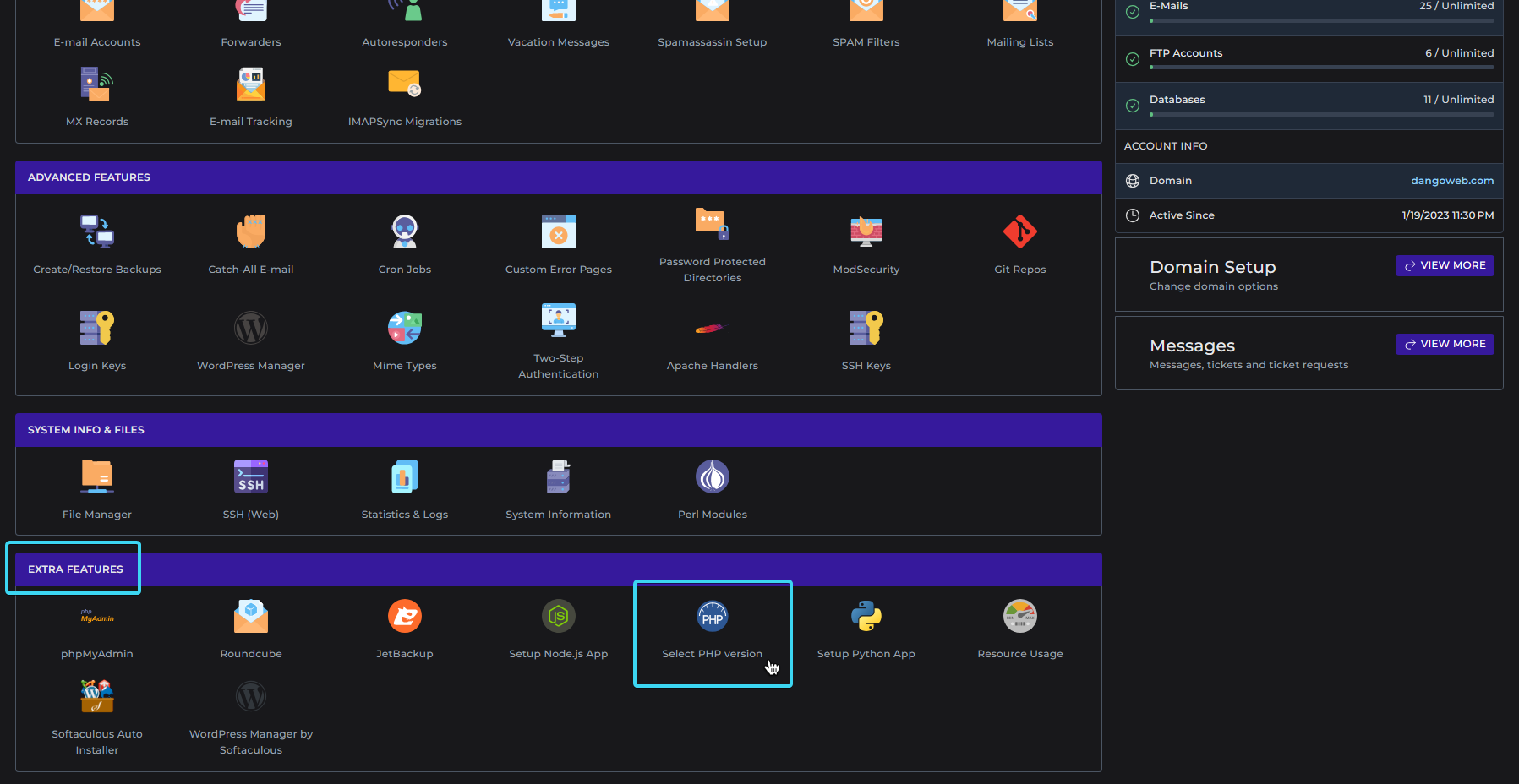
2. Navigate to the **Advanced Features** section.
3. Click on <Icon icon="https://mintcdn.com/dangowebsolutions/j-uP3DKiLJ2Amixo/icons/directadmin/php-selector.svg?fit=max&auto=format&n=j-uP3DKiLJ2Amixo&q=85&s=a16186d1e9b53299237991c0e99459a2" width="150" height="150" data-path="icons/directadmin/php-selector.svg" /> **PHP Selector**. You will be redirected to the <Icon icon="https://mintcdn.com/dangowebsolutions/j-uP3DKiLJ2Amixo/icons/directadmin/php-selector.svg?fit=max&auto=format&n=j-uP3DKiLJ2Amixo&q=85&s=a16186d1e9b53299237991c0e99459a2" width="150" height="150" data-path="icons/directadmin/php-selector.svg" /> **PHP Selector** interface.
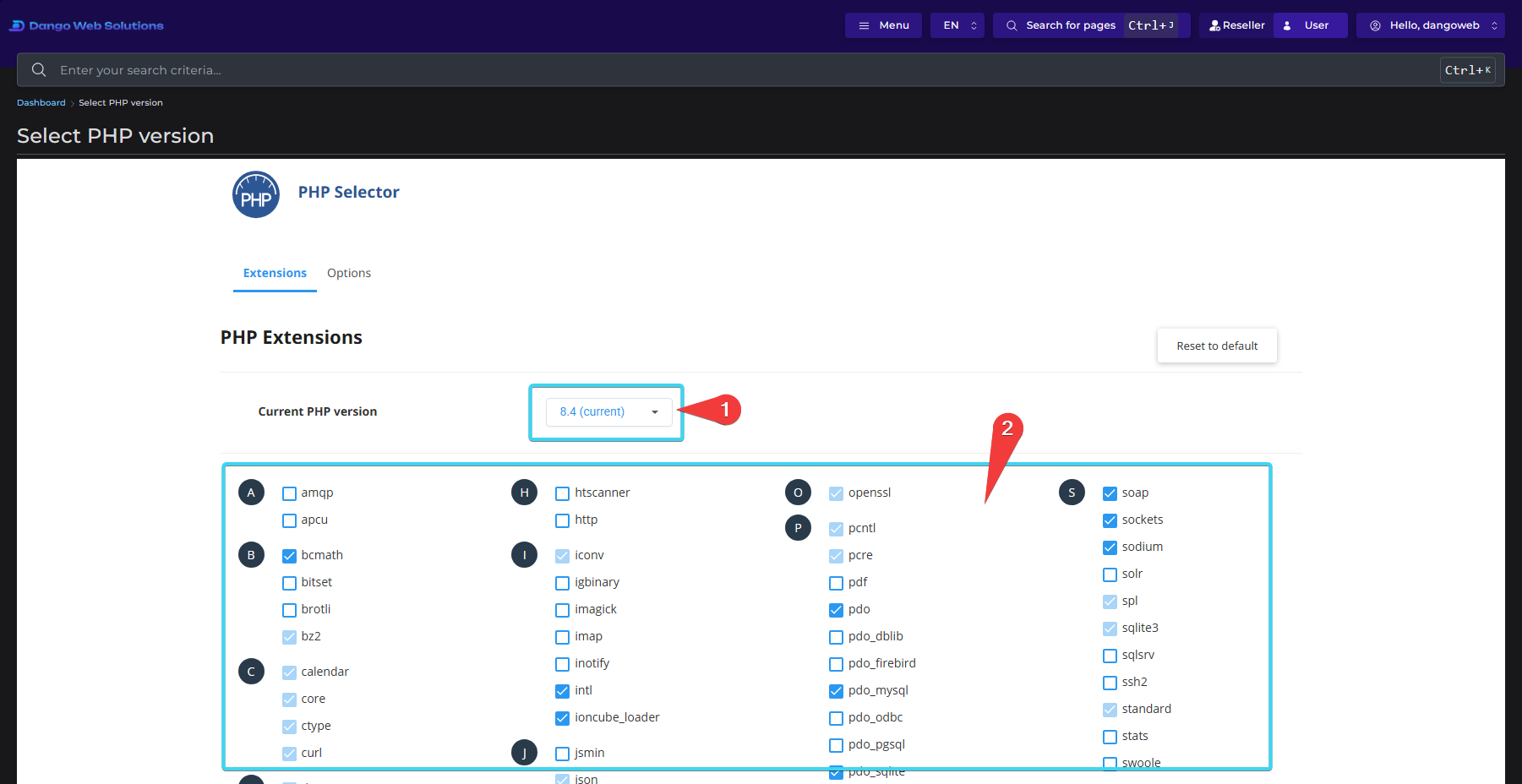
4. Select the required PHP version from the dropdown menu next to "Current PHP version".
5. Select required extensions from the alphabetical package list.

<Info>If you do not see the extension you need, [contact support](/help/support). The extension will need to be reviewed before it can be added.</Info>

<Columns cols={2}>
  <Frame caption="Find PHP Selector">
    <img src="https://mintcdn.com/dangowebsolutions/GhnJiyDyFdEb7_mf/images/php/find-php-selector.png?fit=max&auto=format&n=GhnJiyDyFdEb7_mf&q=85&s=c8d63d9badd8105932c4b04737a8cb7e" alt="Find PHP Selector" width="1797" height="928" data-path="images/php/find-php-selector.png" />
  </Frame>

  <Frame caption="PHP Selector">
    <img src="https://mintcdn.com/dangowebsolutions/GhnJiyDyFdEb7_mf/images/php/php-selector.png?fit=max&auto=format&n=GhnJiyDyFdEb7_mf&q=85&s=ef11930b0212c4d338079d235585e6ee" alt="PHP Selector" width="1801" height="928" data-path="images/php/php-selector.png" />
  </Frame>
</Columns>

## PHP Settings

The <Icon icon="https://mintcdn.com/dangowebsolutions/j-uP3DKiLJ2Amixo/icons/directadmin/php.svg?fit=max&auto=format&n=j-uP3DKiLJ2Amixo&q=85&s=7aff50253a911e1fad32904c087e561a" width="50" height="50" data-path="icons/directadmin/php.svg" /> **PHP Settings** tab in <Icon icon="https://mintcdn.com/dangowebsolutions/h7v7ncdoSDUTq6Mf/icons/directadmin/directadmin.svg?fit=max&auto=format&n=h7v7ncdoSDUTq6Mf&q=85&s=c0de1870528a3e8f5ac7adc3d416a84a" width="100" height="100" data-path="icons/directadmin/directadmin.svg" /> **DirectAdmin** allows you to configure various PHP settings for your web applications. This is particularly useful for developers who need specific PHP configurations for their applications.

To access <Icon icon="https://mintcdn.com/dangowebsolutions/j-uP3DKiLJ2Amixo/icons/directadmin/php.svg?fit=max&auto=format&n=j-uP3DKiLJ2Amixo&q=85&s=7aff50253a911e1fad32904c087e561a" width="50" height="50" data-path="icons/directadmin/php.svg" /> **PHP Settings**, follow these steps:

1. Log in to your <Icon icon="https://mintcdn.com/dangowebsolutions/h7v7ncdoSDUTq6Mf/icons/directadmin/directadmin.svg?fit=max&auto=format&n=h7v7ncdoSDUTq6Mf&q=85&s=c0de1870528a3e8f5ac7adc3d416a84a" width="100" height="100" data-path="icons/directadmin/directadmin.svg" /> **DirectAdmin** control panel.
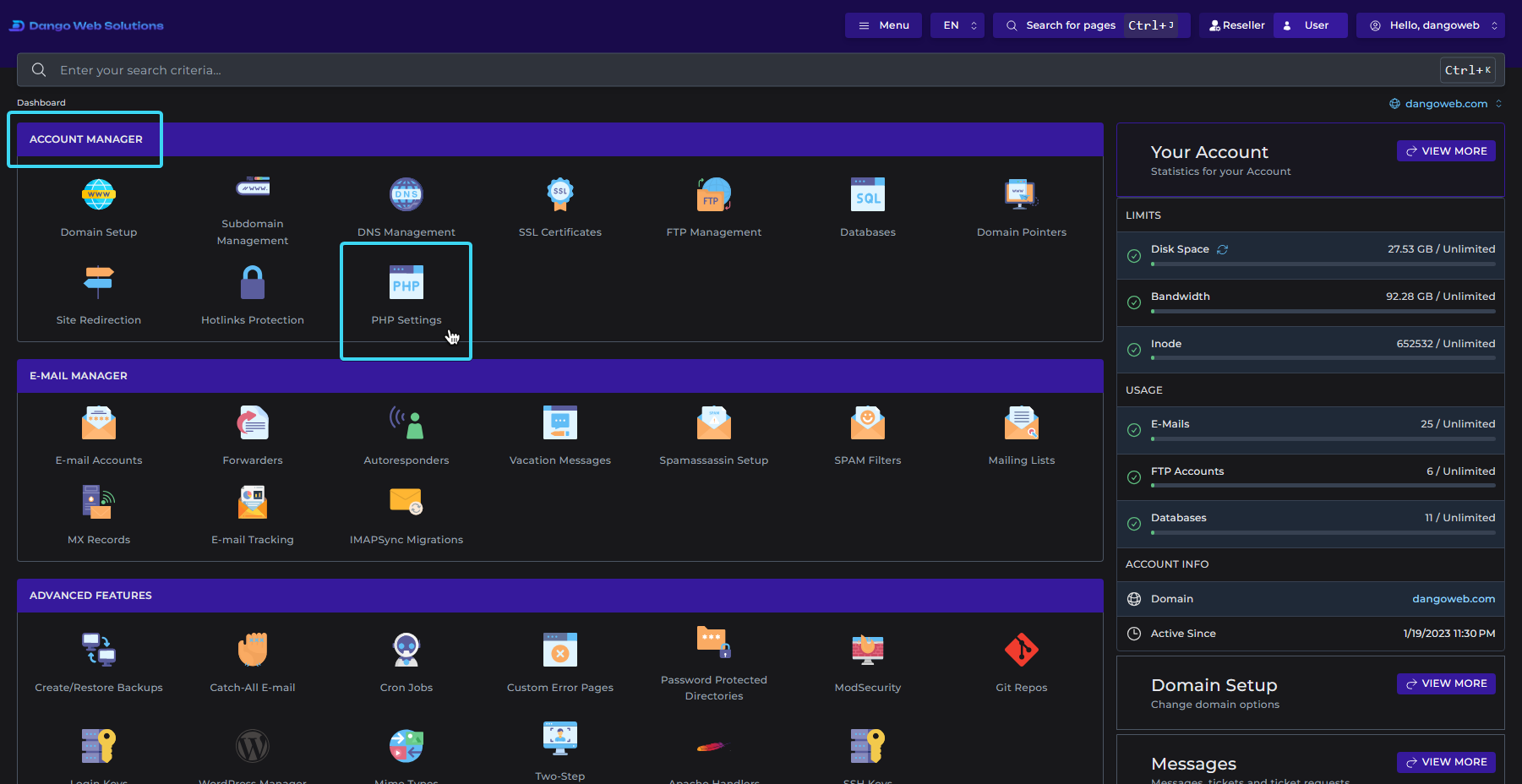
2. Navigate to the **Account Manager** section.
3. Click on <Icon icon="https://mintcdn.com/dangowebsolutions/j-uP3DKiLJ2Amixo/icons/directadmin/php.svg?fit=max&auto=format&n=j-uP3DKiLJ2Amixo&q=85&s=7aff50253a911e1fad32904c087e561a" width="50" height="50" data-path="icons/directadmin/php.svg" /> **PHP Settings**.
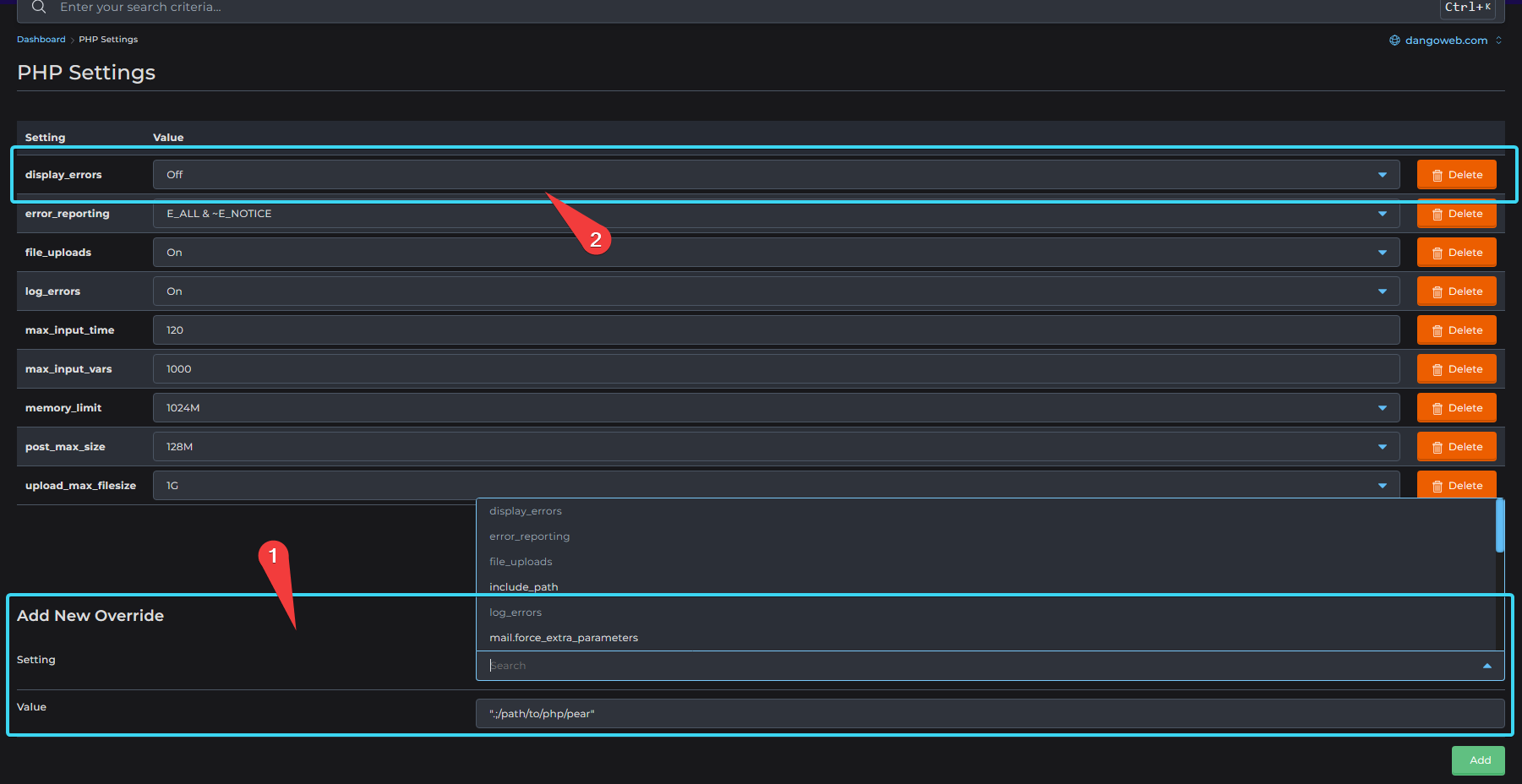
4. Add new PHP setting overrides by searching for the override, selecting it, entering an override value, and clicking the **Add** button.
5. To remove an override, click the <Icon icon="trash-can" /> **Delete** button next to the override you want to remove.
<Columns cols={2}>
  <Frame caption="Find PHP Settings">
    <img src="https://mintcdn.com/dangowebsolutions/GhnJiyDyFdEb7_mf/images/php/find-php-settings.png?fit=max&auto=format&n=GhnJiyDyFdEb7_mf&q=85&s=42a4e8e2ce153b5e50e55d52fe2d2ac4" alt="Find PHP Settings" width="1801" height="928" data-path="images/php/find-php-settings.png" />
  </Frame>

  <Frame caption="PHP Settings">
    <img src="https://mintcdn.com/dangowebsolutions/1NBVQ-ho_RBVueH4/images/php/php-settings.png?fit=max&auto=format&n=1NBVQ-ho_RBVueH4&q=85&s=cfb76d5d6823decfbd21e8bebce1e648" alt="PHP Settings" width="1801" height="928" data-path="images/php/php-settings.png" />
  </Frame>
</Columns>