> ## Documentation Index
> Fetch the complete documentation index at: https://docs.dangoweb.com/llms.txt
> Use this file to discover all available pages before exploring further.
# Softaculous
> Learn how to install and manage various software on DirectAdmin.
## Scripts
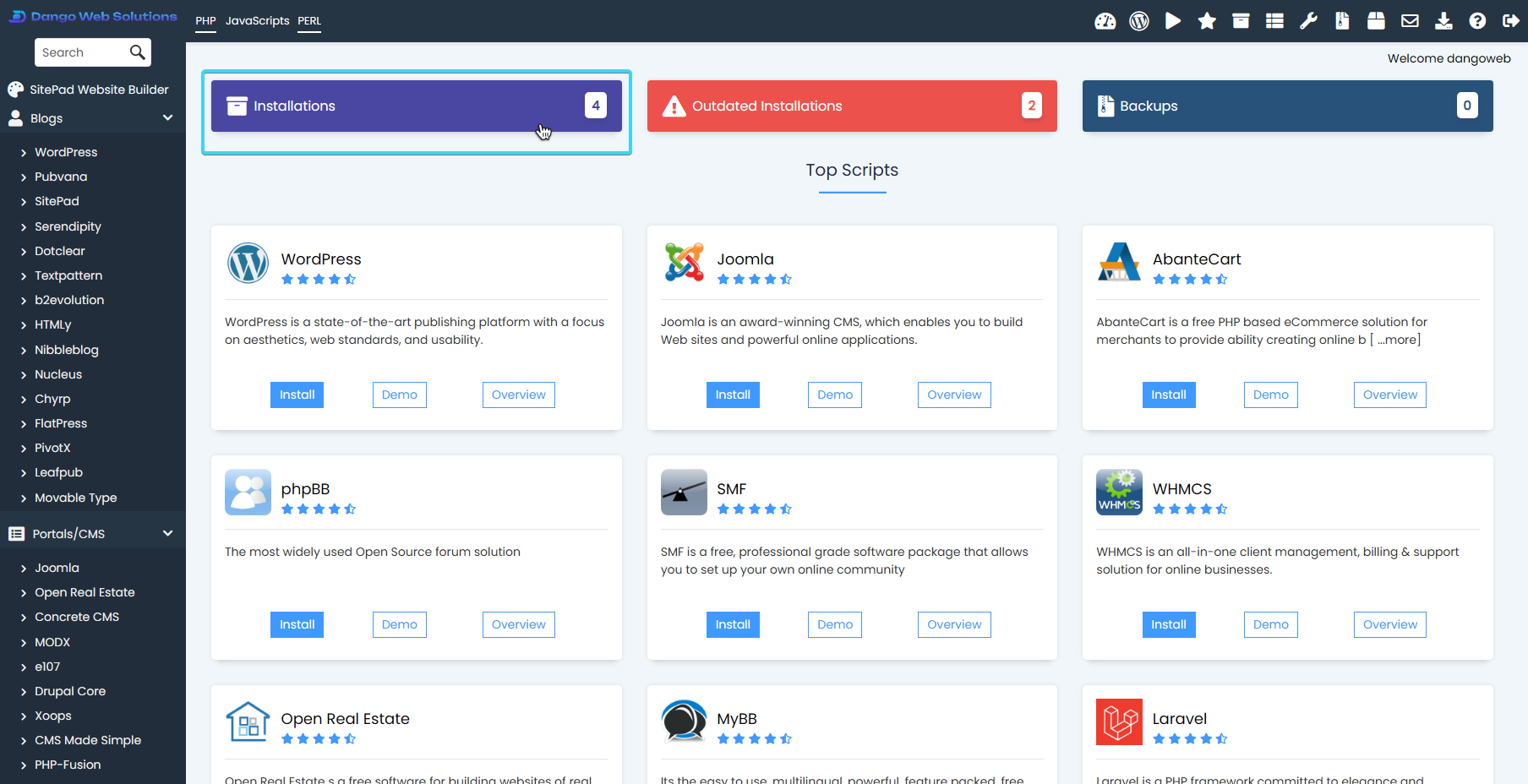
Softaculous is a popular auto-installer that allows you to install various software applications on your **DirectAdmin** server with just a few clicks. It simplifies the process of installing and managing applications like WordPress, Joomla, Drupal, and many others.
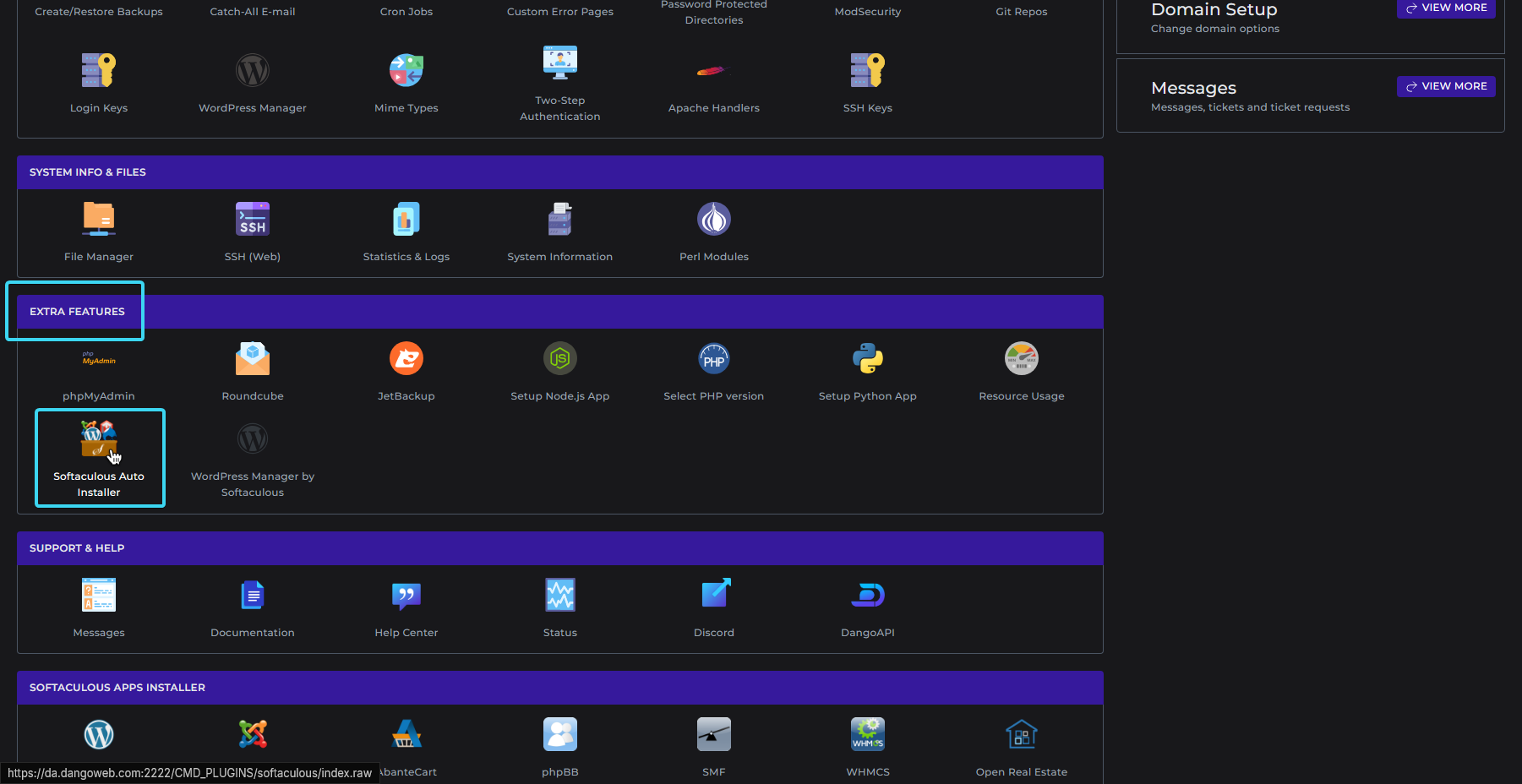
To access Softaculous, follow these steps:
1. Log in to your **DirectAdmin** control panel.
2. Navigate to the **Extra Features** section.
3. Click on **Softaculous Apps Installer**.
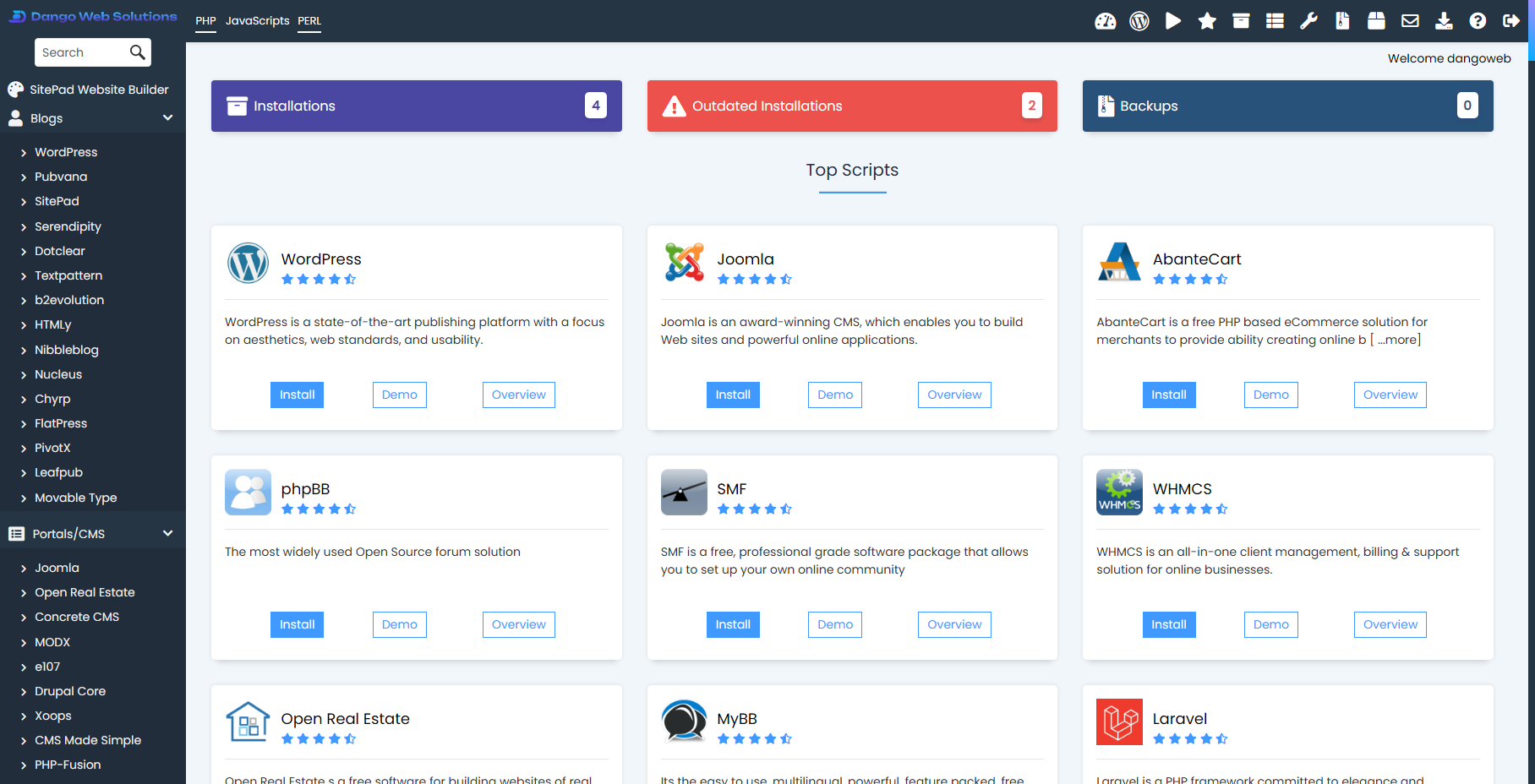
4. You will be redirected to the Softaculous interface, where you can browse and search for applications.
 ## Installing Applications
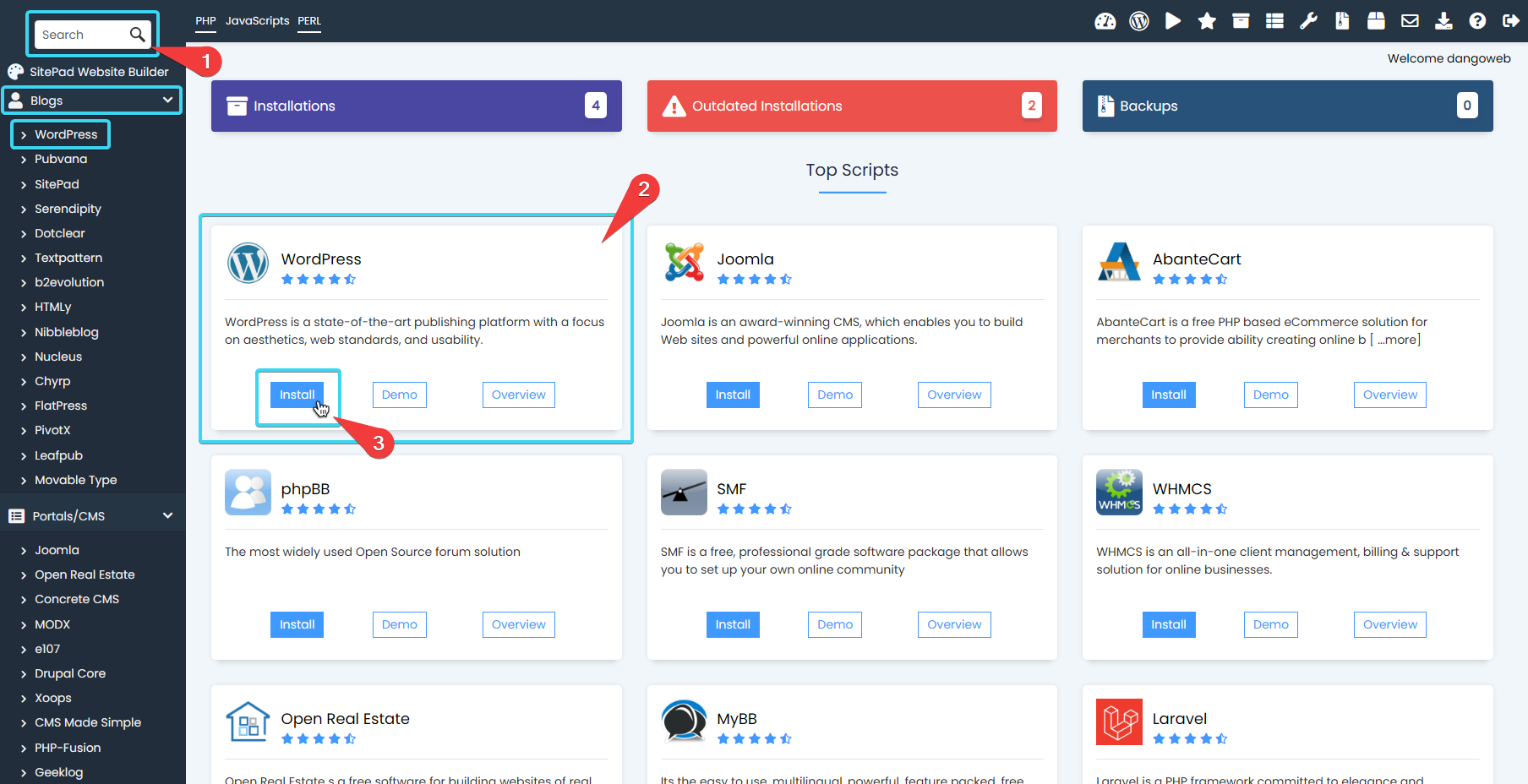
Once you are in the Softaculous interface, you can install applications by following these steps:
1. Browse or search for the application you want to install.
2. Click on the application to view its details.
3. Click the **Install** button.
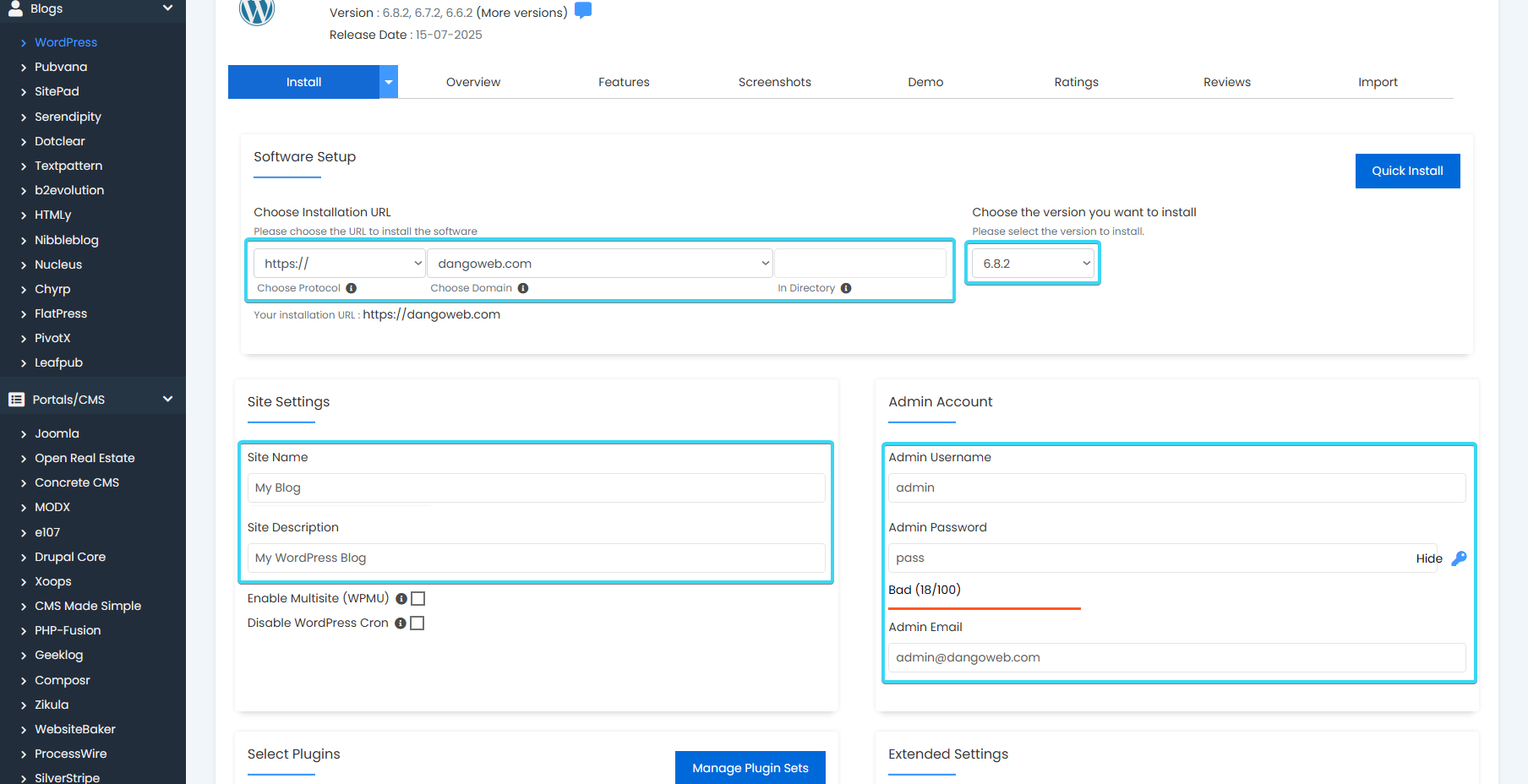
4. Fill in the required information, such as the installation URL, admin username, and password.
* Installation URL: Your domain or subdomain where the application will be installed at e.g. `domain.com` or `sub.domain.com`.
* Directory: Trailing directory where the application will be installed at. You may want to leave this blank to install the application at the root of the domain (e.g. `domain.com` instead of `domain.com/wp`).
* Version: Select the highest version available. This should be automatically selected for you.
* Admin Username: The username you will use to log in to the application. Default: `admin`.
* Admin Password: The password you will use to log in to the application. Default: `admin`.
* Admin Email: The email address associated with the admin account.
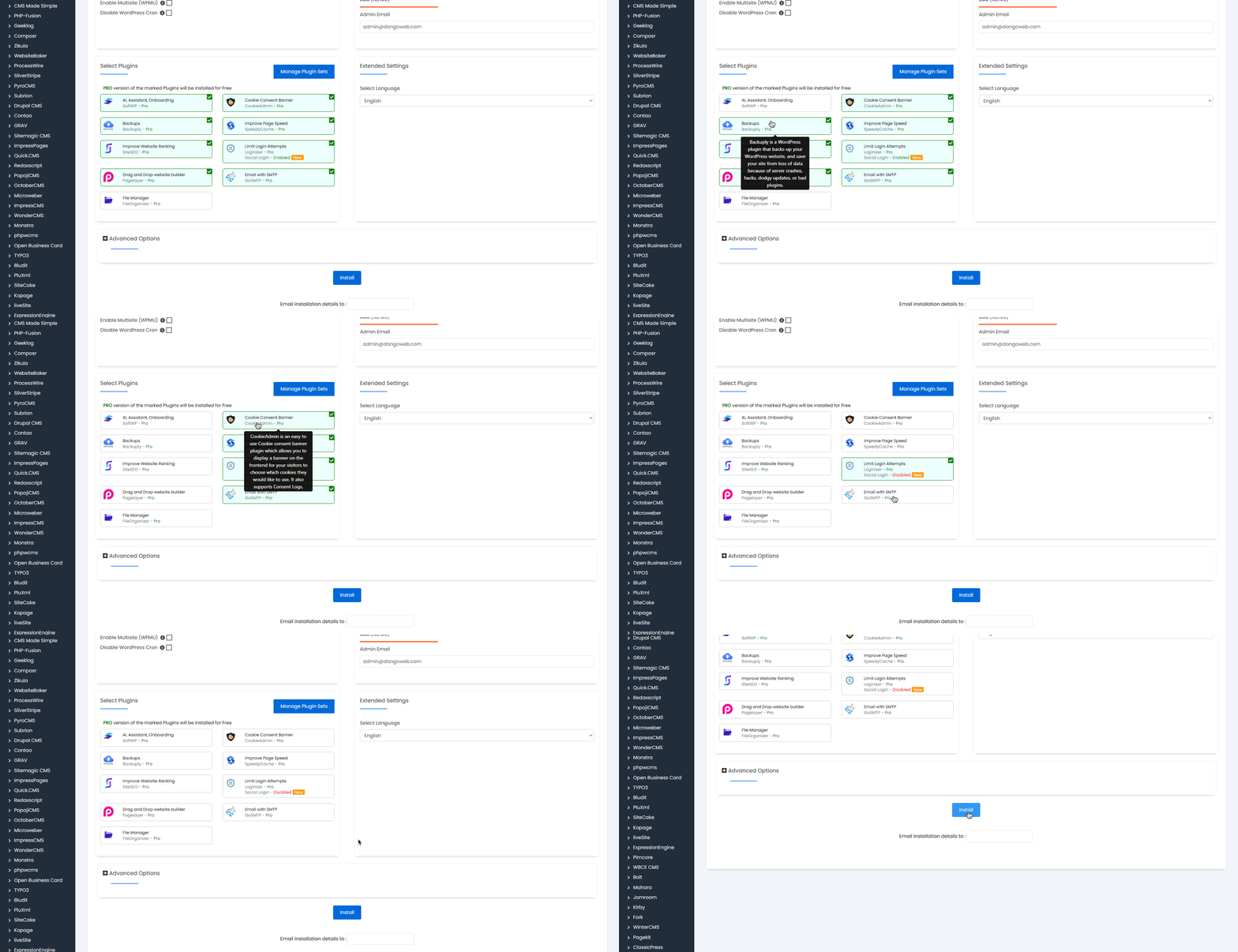
5. Deselect any offered plugins or themes that you do not want to install. This is important to avoid unnecessary bloat and potential security issues.
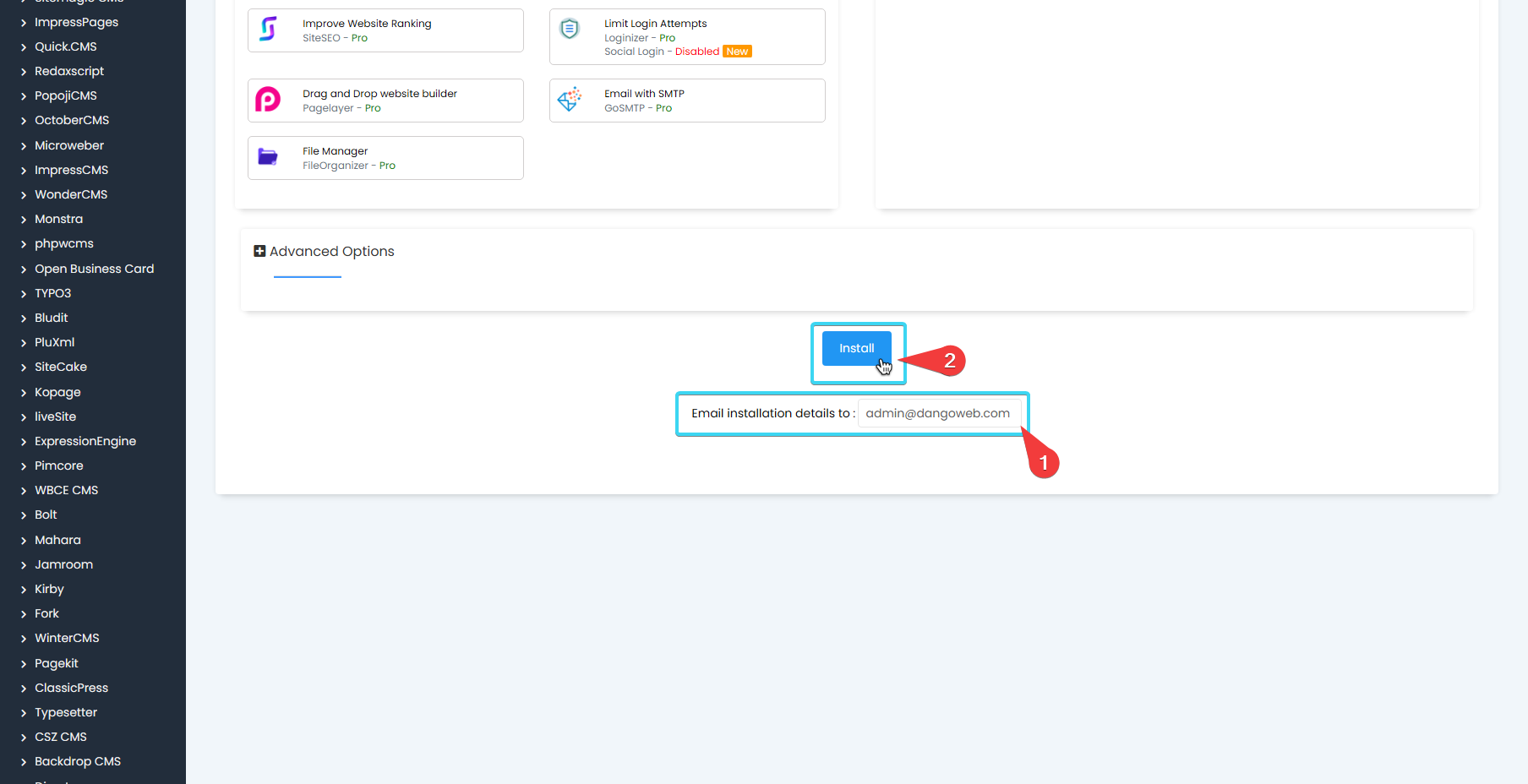
6. Click the **Install** button to complete the installation. You may want to add an email address to the **Email Installation Details** field to receive an email with the installation details.
## Installing Applications
Once you are in the Softaculous interface, you can install applications by following these steps:
1. Browse or search for the application you want to install.
2. Click on the application to view its details.
3. Click the **Install** button.
4. Fill in the required information, such as the installation URL, admin username, and password.
* Installation URL: Your domain or subdomain where the application will be installed at e.g. `domain.com` or `sub.domain.com`.
* Directory: Trailing directory where the application will be installed at. You may want to leave this blank to install the application at the root of the domain (e.g. `domain.com` instead of `domain.com/wp`).
* Version: Select the highest version available. This should be automatically selected for you.
* Admin Username: The username you will use to log in to the application. Default: `admin`.
* Admin Password: The password you will use to log in to the application. Default: `admin`.
* Admin Email: The email address associated with the admin account.
5. Deselect any offered plugins or themes that you do not want to install. This is important to avoid unnecessary bloat and potential security issues.
6. Click the **Install** button to complete the installation. You may want to add an email address to the **Email Installation Details** field to receive an email with the installation details.
 ## Manage Installations
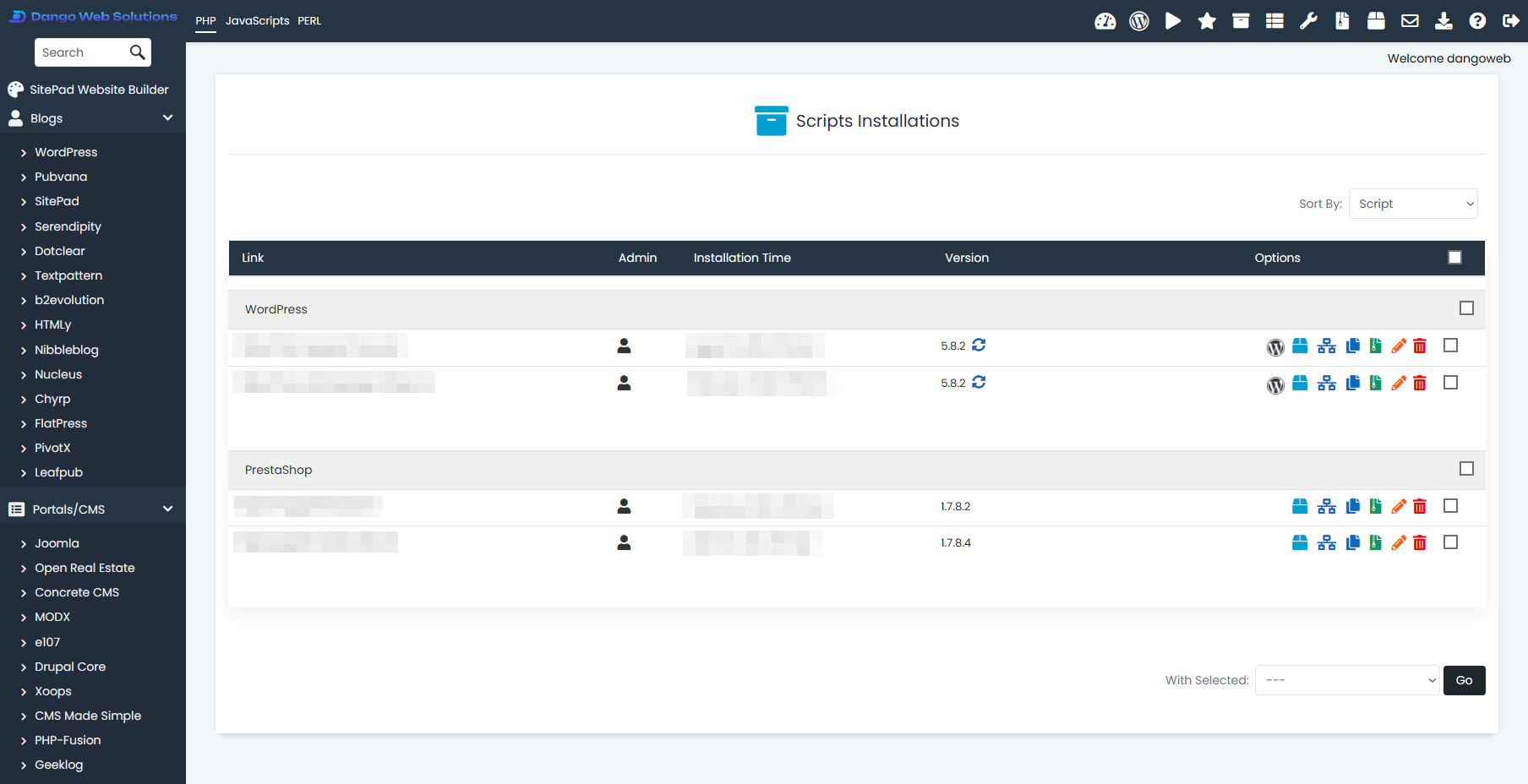
After installing an application, you can manage it through Softaculous. To do this, follow these steps:
1. Go to the **Installations** section in Softaculous. You will see a list of all installed applications.
2. Next to each installation, you will find options to edit, remove, or view the application.
3. Click on the **Admin** icon to access the application's admin panel.
4. Click on the **Upgrade** icon to update the application to the latest version. This upgrade may break your installation, so it is recommended to take a backup before proceeding.
5. Click on the **Template** icon to create a template of the current installation. This will allow you to reinstall the application with the same settings in the future without having to reconfigure everything.
6. Click on the **Staging** icon to create a staging environment for the installation. This is useful for testing changes before applying them to the live site.
7. Click on the **Clone** icon to create a copy of the installation to another domain or subdomain.
8. Click on the **Backup** icon to create a backup of the installation.
9. Click on the **Edit** icon to change settings such as the installation URL, admin username, password, and more.
10. Click on the **Remove** icon to uninstall the application. This will delete all files and databases associated with the installation.
## Manage Installations
After installing an application, you can manage it through Softaculous. To do this, follow these steps:
1. Go to the **Installations** section in Softaculous. You will see a list of all installed applications.
2. Next to each installation, you will find options to edit, remove, or view the application.
3. Click on the **Admin** icon to access the application's admin panel.
4. Click on the **Upgrade** icon to update the application to the latest version. This upgrade may break your installation, so it is recommended to take a backup before proceeding.
5. Click on the **Template** icon to create a template of the current installation. This will allow you to reinstall the application with the same settings in the future without having to reconfigure everything.
6. Click on the **Staging** icon to create a staging environment for the installation. This is useful for testing changes before applying them to the live site.
7. Click on the **Clone** icon to create a copy of the installation to another domain or subdomain.
8. Click on the **Backup** icon to create a backup of the installation.
9. Click on the **Edit** icon to change settings such as the installation URL, admin username, password, and more.
10. Click on the **Remove** icon to uninstall the application. This will delete all files and databases associated with the installation.